بِسْمِ اللَّهِ الرَّحْمَٰنِ الرَّحِيمِ
বিসমিল্লাহির রাহমানির রাহিম
২
বাংলা দেখা না গেলে
নাযিলের ধরন:
মাদানী
আয়াত সংখ্যা:
২৮৬ টি
সূরা নম্বর:
২
পড়া হয়েছে:
৩৫৪৭৫ বার
আয়াত ও তাফসীর

How to View Bangla Website.
Shortest Way
- Install Unicode Bangla Font.
- Browse with Internet Explorer (IE6+) or Firefox (FF2+).
- If it does not work then set the Encoding to UTF-8 or Unicode whatever is available in browser setting.
- If any problem persists then go to following steps according to your Operating System and Browser.
Operating System Settings
Windows XP (Service Pack 2)- You need to have Internet Explorer (IE6+), Opera (Opera 9) or Firefox (1.5+) to view Bangla Properly.
- You need Unicode Bangla Font in your System. We recommend SolaimanLipi.
- You need Complex Scripts (Indic Text) support from your Operating System.
Windows 95, 98, ME and NT
- These operating systems contain no support for Bangla script but You may be able to view Bangla with Internet Explorer 6.0 with Appropriate Unicode Font.
Windows Vista
- Bangla script support is automatically enabled.
- Just Install Unicode Bangla Font.
Mac OS X
- You need to download and install an OS X Bangla font from http://ekushey.org/?page/osx.
Gnome
- You do not need to do anything to enable viewing of Indic text in Gnome 2.8 or later. Ensure you have Bangla Unicode fonts.
KDE
- You do not need to do anything to enable viewing of Indic text. Ensure you have appropriate Unicode fonts for each script you wish to view.
Browser Settings
Internet Explorer
- From menu Select, View -> Encoding -> Unicode (UTF-8) this should work fine if does not then go following steps.
- From menu, go to "Tools>Internet Options"
- From this window click on "Fonts"
- Click on the drop down list for "Language Scripts" and select "Bengali" from this drop down list (you may have to scroll up to locate it)
- Select any desired Bangla font (SolaimanLipi) for "Web Page Font". Then click ok and ok again
Mozilla Firefox
- From menu click on "Tools" and select "Options"
- From this window click on "Content".
- Click on "Advanced" button.
- Click on the drop down list for option "Fonts for" select "Bengali" from this list.
- Complete all the option fields by selecting "SolaimanLipi"
- Select "Default Character Encoding" as "Unicode (UTF-8)" and click ok.
- Click ok again to complete your setup.
- Note: Firefox 3 is working fine. Please, use Firefox 3.
Opera
- From menu click on "Tools" and select "Preferences"
- Click on "Advanced" tab, click on "Fonts" from left menu and click "International Fonts"
- Choose writing system "Bengali" from drop-down list
- Choose a font (SolaimalLipi) for normal font. click ok until you exit from preferences
Google Chrome
- Click on the "Tools" icon and Select "Options"
- On the "Minor Tweaks" tab, click on "Change font and language settings" button
- On the "Fonts and Languages" dialogue box, click on "Fonts and Encoding" tab
- Select any Bangla font (SolaimanLipi) as "Serif" and "Sans-serif" fonts
- Select "Unicode (utf-8)" as the "Default Encoding"
- Click OK and Click Close
Safari
- Open Safari, Goto Edit -> Preferences
- Click on Appearance
- On the Standard Font and Fixed-Width Font, Select Solaimanlipi in both Fields and Leave the font size as it was
- Click on Default Encoding, and select Unicode (UTF-8) and close the box
- Restart Safari
Opera mini - Mobile Device
- Write opera:config into the address bar then enter
- Set "Use Bitmap font for complex script" to "Yes"
- Save
How to Install Bangla Font in Windows
- Download any Bangla unicode font.
We Recommended "SolaimanLipi". Download SolaimanLipi. - Copy to "c:\windows\fonts" or "control panel\fonts" folder to view bangla in the web pages. c:\windows refers to your Windows Directory.
How to Enable Complex Script (Indic Text) Support in Windows
- Go to control panel -> Regional and Language Options -> Language, and check the "Install files for complex scripts and right-to-left languages" option. You will need your Windows XP SP2 installer CD to install these new files.
- Just download and install "I-COMPLEX".
Download "i-complex".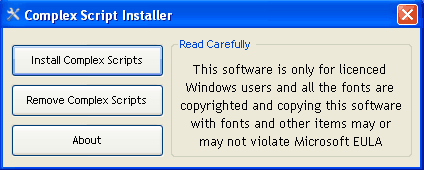
৩৫৪৭৫ বার পড়া হয়েছে
২৮৬ টি আয়াত
মাদানী সূরা